BatchPatch August 2013 – New Release

News!
I’m excited to announce that we’re in the final stages of testing for the new release of BatchPatch, expected to “drop” in August. We’ve got all sorts of new features lined up plus lots of other little enhancements, as well as bug fixes. Some of the new features are listed below.

—————————————————————————————————————————-
—————————————————————————————————————————-

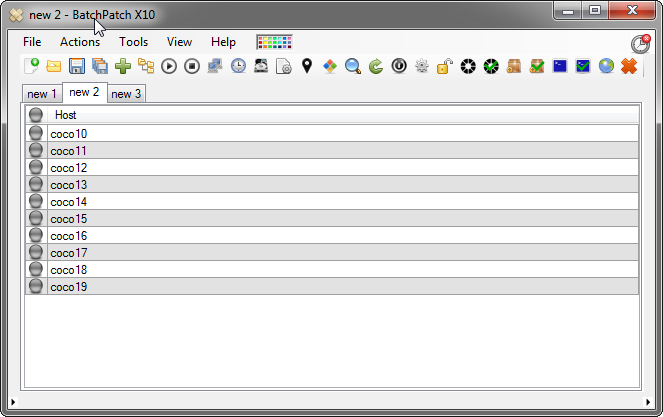
Tabbed Interface
The new tabbed interface is great for those folks who are dealing with lots of hosts or lots of host groupings. This should make it much easier to manage your BatchPatch grids to be even more efficient with your patching.
TabbedInterface
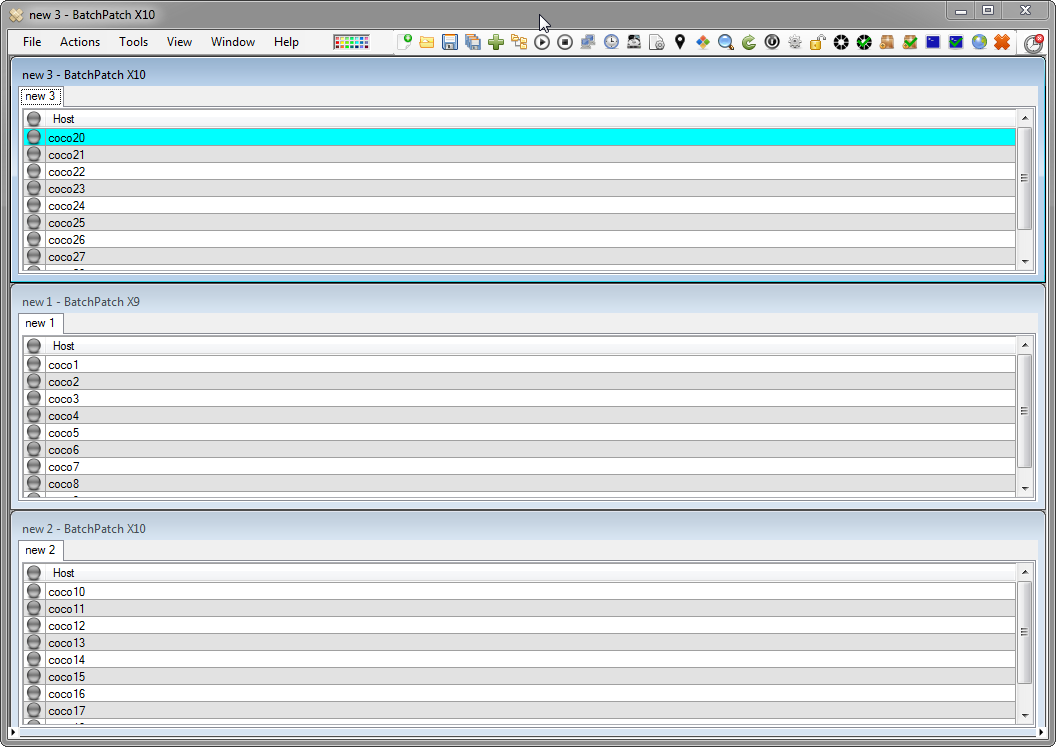
Multi-grid Interface
The new multi-grid interface gives you an alternate view of your tabs, allowing you to look at them all simultaneously, tiled inside the main BatchPatch window. You can easily switch between the multi-grid and regular tabbed interfaces.
MultiGridInterface
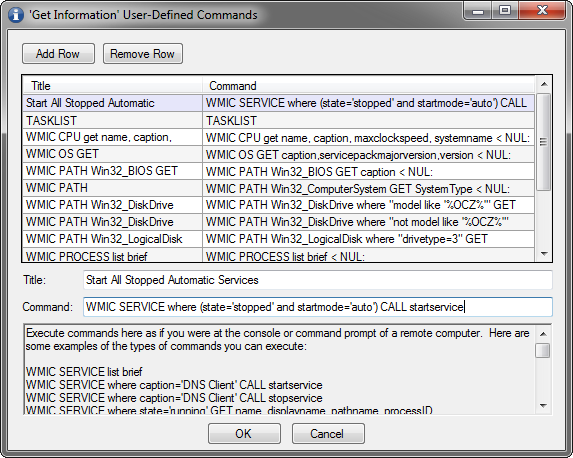
Custom User-defined Commands
You can now create and save as many commands as you want, allowing you to easily execute and view the result of any command on a target host with just a single click. This option allows you to fully customize BatchPatch, making your own custom commands appear hard-coded into the menu.
UserDefinedCommands
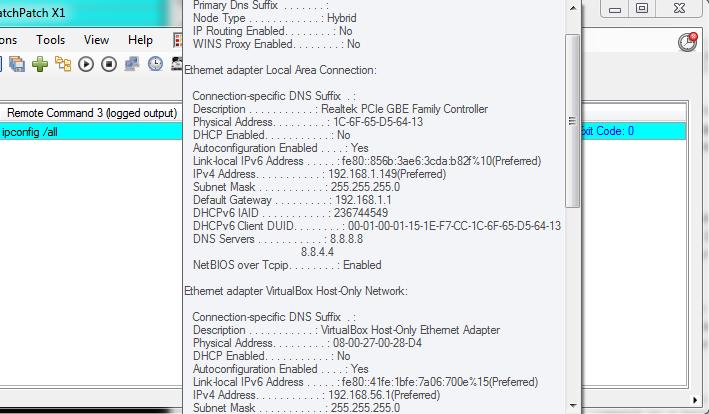
Remote Console Output
There are now plenty of ways for you to view all the console output of commands that are executed remotely.
LoggedOutput
Improved Deployment Options
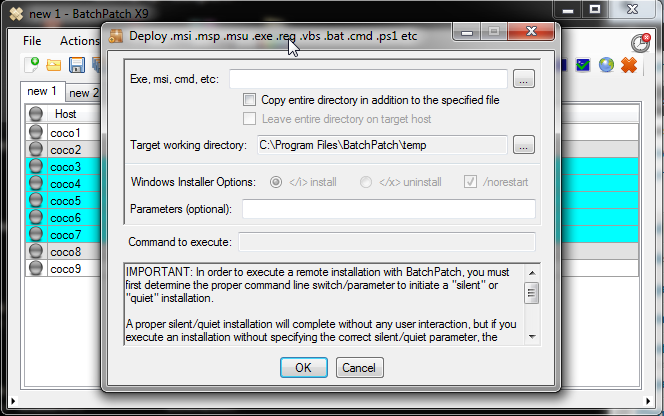
Deploying software and patches or standalone updates like MSI, MSU, MSP files has never been easier. BatchPatch can remotely deploy/execute just about any type of file, including EXE, VBS, REG, BAT, CMD, PS1, etc. If you need to install software or run a package on many computers simultaneously, you can do it with BatchPatch’s Deployment feature and just a few clicks.
Deployment
Update and Reboot Cycle
BatchPatch now gives you an easier, automated way to execute a patch and boot cycle on your computers. For example, let’s say you want to install Windows updates on a list of computers, then reboot, then download and install any new Windows updates, then reboot again. It’s extremely easy to do this with BatchPatch. If you need the cycle to repeat 3 times, 4 times, or 10 times, no problem! It only takes a few clicks to customize the cycle to suit your needs.
UpdateRebootCycle
Improved Scrollable ToolTip
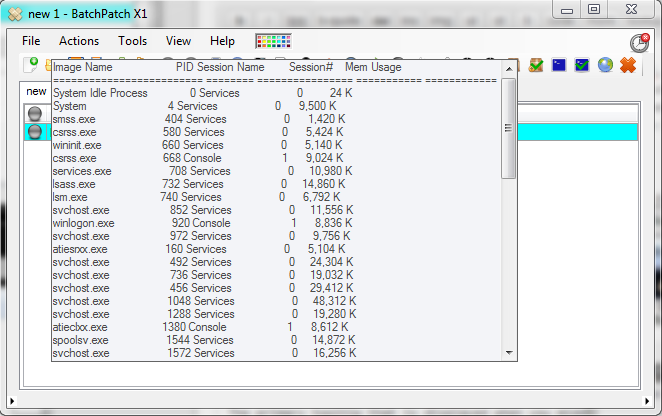
The primary tooltip that is displayed when you middle-click on any cell is now scrollable, resizable, and moveable with right-click-drag or middle-click-drag. It also supports ctrl-c to copy text to the clipboard.
ScrollableToolTip

Concurrent Thread Maximum
The new concurrent thread maximum setting gives you more control over performance when patching. As you choose more actions to run they are added to the queue, to be executed only when there is a free thread available.

Scheduler
The scheduler now supports a new option to execute a task immediately upon detecting a target computer online, rather than having to set a specific date/time. This makes it easy when deploying to a large group of users who do not always have their computers on the network. BatchPatch will simply wait until the computer is available on the network before executing the desired task.

Start and Stop Services by Name
Just as it sounds, the new version enables you to start and/or stop individual services on target computers

Kill Remote Processes by Name or PID
Kill any remote process on target computers by specifying either the process name or the process ID.

More Features Coming Soon!
We have more features planned, so please stay tuned. And of course, as always, if you’d like to request a feature or submit a bug, please either post in the forum or contact us directly.

Posted in General | Tagged , , , , | Comments closed

Remotely installing software, patches, hotfixes, or updates with BatchPatch

Installing Applications or Patches Remotely with BatchPatch:

Posted in Blog, General, Tutorials, Videos | Tagged , , , | Comments closed

Remotely Installing Windows Updates

Installing Windows Updates Remotely with BatchPatch:

Posted in Blog, General, Tutorials, Videos | Tagged , , , | Comments closed

How to push .NET (or just about anything) to remote hosts using BatchPatch

Here’s how to use BatchPatch to push the .NET framework to remote hosts that don’t already have it installed.  You can easily modify this example to push Adobe updates, Java updates, or just about anything else to remote hosts.

When the remote host is XP/2003:

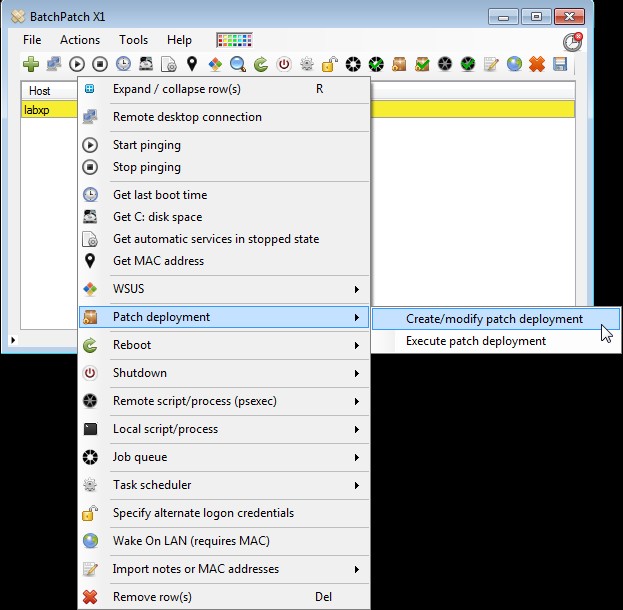
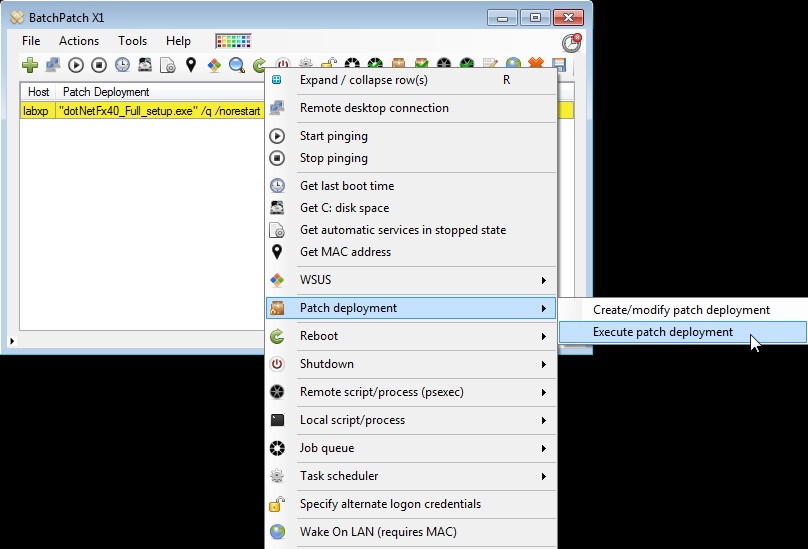
1. Add your remote host(s) to the BatchPatch grid, highlight the row(s), and then choose “Create/modify patch deployment”

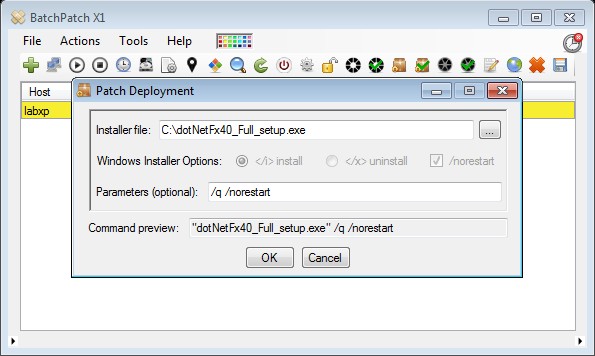
2. Select the .NET installer and add “/q /norestart” to the parameters field

3. Choose “Execute patch deployment” to begin the process.The installer file will be copied to the remote host and executed.

4. After a few minutes, we see “Exit code: 0,” which signifies success.If you receive a different exit code, you should Google it to find out what it means.Windows installers can return a host of different numbers to indicate various things like “reboot required,” for example.


When the remote host is Windows 2008:

Windows 2008 makes .NET a “feature” that you can install from the command line, so we simply have to execute the proper command on the remote host(s)

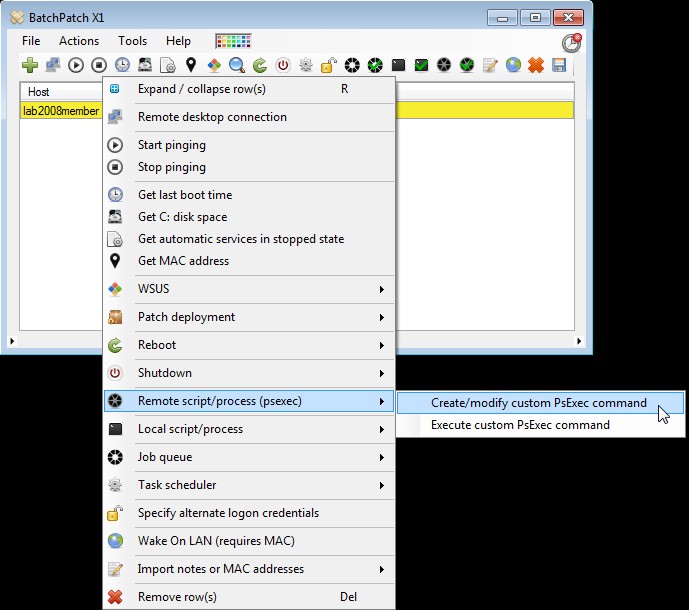
1. Add your remote host(s) to the BatchPatch grid, highlight the row(s), and then choose “Create/modify custom PsExec command”

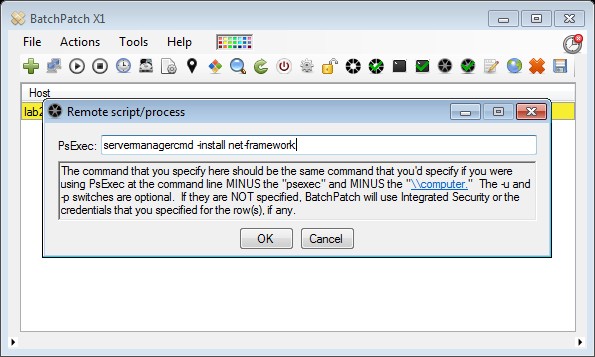
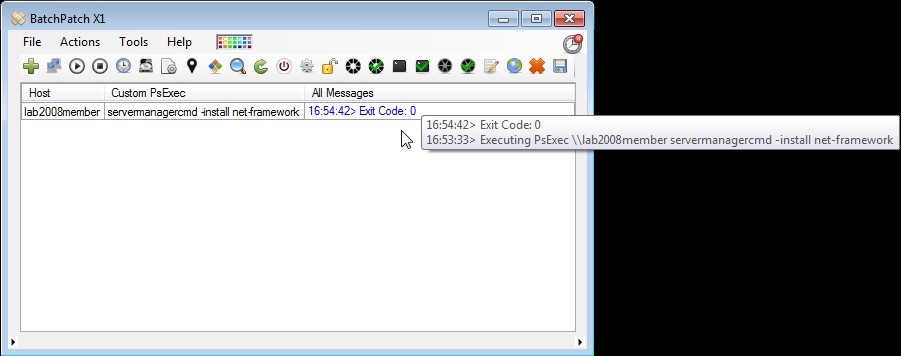
2. Type “servermanagercmd -install net-framework” with no quotes, of course, in the field.

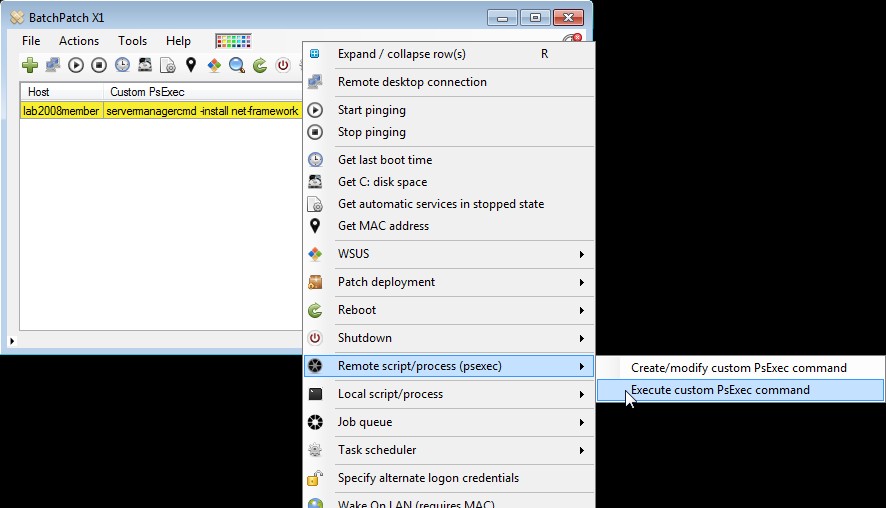
3. Choose “Execute custom PsExec command” to begin the process.

4. After a few minutes, we see “Exit code: 0,” which signifies success.If you receive a different exit code, you should Google it to find out what it means.Windows installers can return a host of different numbers to indicate various things like “reboot required,” for example.

Posted in Blog, General, Tutorials | Tagged , | Comments closed