

Moving BatchPatch to a New Computer
The process for moving BatchPatch to a new computer is quick and painless:
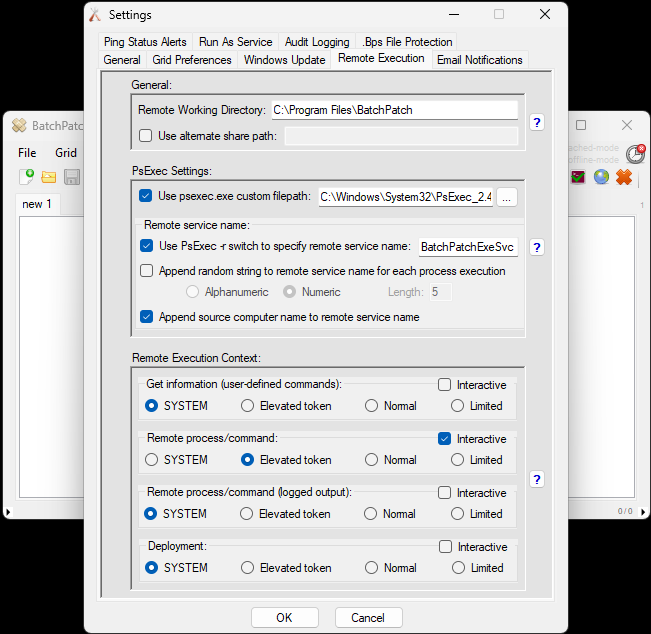
- Copy the batchpatch.exe and psexexec.exe from the old computer to the new computer. Put the psexec.exe in the same directory as the batchpatch.exe, or put it in C:\Windows, or put it in any directory of your choosing but then change the BatchPatch settings to point to that directory under Tools > Settings > Remote Execution > Use psexec.exe custom filepath:
- Apply your license details per the instructions that came with the license email that you received at the time of purchase.
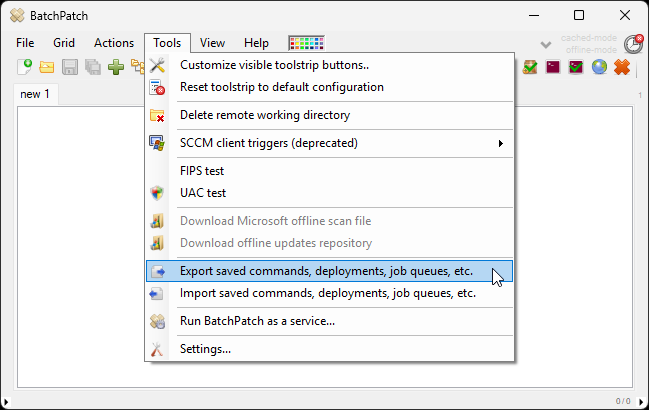
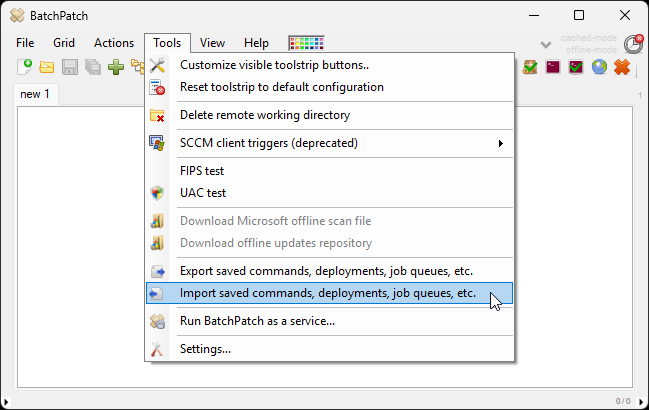
- On the old computer, export your saved commands, deployments, job queues, email notifications, etc. by using Tools > Export saved commands…. You can then import the resultant .xml file on the new computer using Tools > Import saved commands…
- If your grids are encrypted and you plan to move them, you have a few options. Choose either A, B, or C.
A) Export your encryption keys from the old computer by going to Tools > Settings > .Bps File Protection > Export… (Export both PRIMARY and AUXILIARY keys). Then import the keys on the new computer using Tools > Settings > .Bps File Protection > Import…‘ After doing this, you’ll be able to successfully launch/decrypt the grids on the new computer.
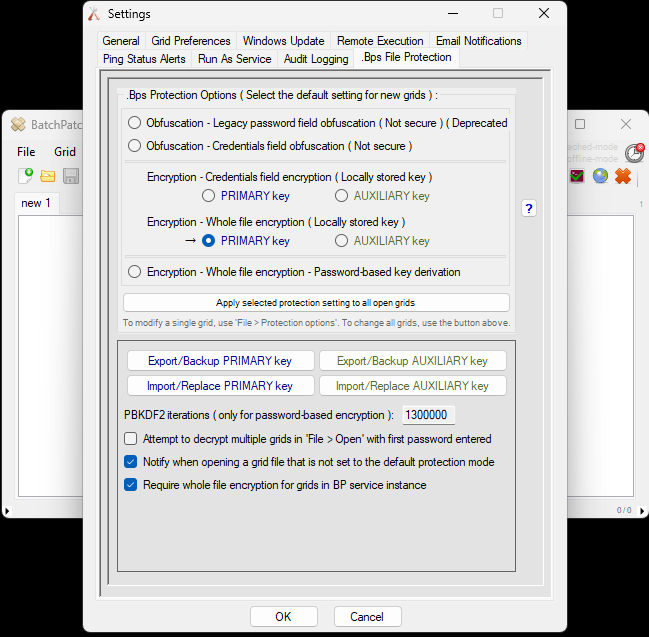
B) Change the encryption type of each .bps grid file individually to Password-based key derivation. Then move the grid files to the the new computer. You’ll be able to launch/decrypt the files on the new computer by entering the password you set previously. You can then also change the encryption type back to Locally stored key once on the new computer. To modify the encryption type for a grid, select File > Protection Options….
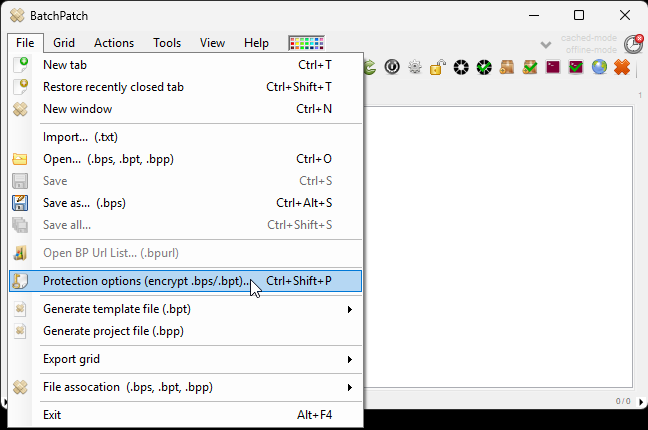
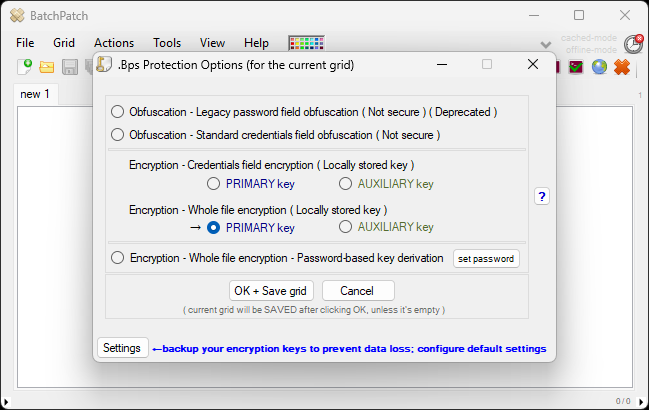
C) Remove the encryption altogether for each .bps grid file individually by selecting the Obfuscation – Standard option. You’ll be able to launch/de-obfuscate the files on the new computer without further interaction. You can then also change the encryption type back to Locally stored key once on the new computer. To modify the encryption/obfuscation type for a grid, select File > Protection Options….