

If you continue to use and re-use the same BatchPatch grid file over a long period of time without ever starting with a fresh new grid, the amount of log data that your saved grid contains can grow quite significantly. There’s a certain point at which too much data in a grid can cause the grid to behave unexpectedly and simply not function properly. One way that we have observed a grid malfunctioning after growing too large is through scheduled tasks simply not executing. We’ve also seen grid performance degrade. If you encounter any general “weirdness” with a grid, the first thing to check is the grid’s file size. If the grid file size is close to or greater than a couple of megabytes, you could be experiencing this issue. There are a few ways to combat this.
-
Use .bpt grid template files to start a new grid for each BatchPatch session
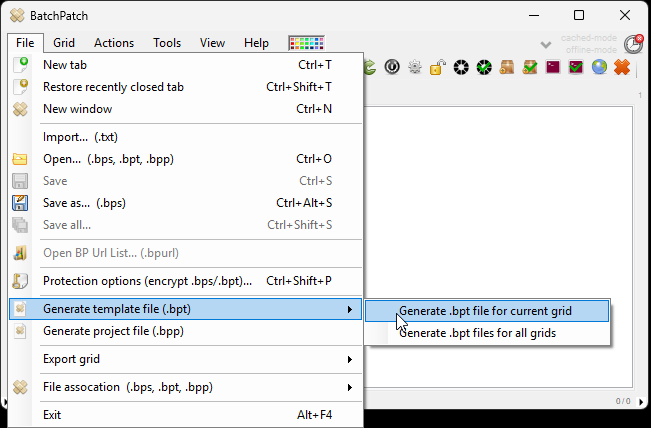
One of the most under-utilized features that BatchPatch offers is template files. A BatchPatch template (.bpt) file is essentially just a standard BatchPatch grid (.bps) file, but with a .bpt file extension instead of .bps. When a .bps file is renamed to .bpt (or when you use File > Generate template file (.bpt)), in the future when you open that .bpt file in BatchPatch you won’t be able to save over it. Instead if/when you click save after loading a .bpt file, BatchPatch will prompt you to save the grid to a new .bps file. The effect is that you can use a .bpt file to save a grid template, so that each time in the future when you want to start a new BatchPatch session, loading the grid template .bpt file enables you start fresh with a brand new grid based on the saved template. It’s just a simple and convenient way to handle starting fresh each session rather than manually copying and pasting a .bps file. In the context of the topic in this posting about grids growing too large over time, if you create a brand new grid from scratch and then save it as a .bpt template file, and if you then use that .bpt template file to start each new session of BatchPatch, you’ll ensure that your grid file doesn’t continually grow larger and larger with each session since you’ll be starting with a new grid (based on the template) for each new session.
-
Manually clear your grid contents
In most cases when a grid grows very large, it’s due to the All Messages column data growing continually over many months or years. You can combat this growth by simply clearing the data in this column periodically or with each new session. If you decide to do this, it would be a good idea to save a copy of the grid so that if you want to refer back to a previous session’s data, it will be in the saved copy. In your current grid session, however, you can clear the data in any column by using Actions > Clear column contents. You should clear any of the columns that you find to be storing a lot of data. For most people it’s going to be the All Messages column, but there are other columns that can accumulate a lot of data, depending on your usage of BatchPatch.
https://batchpatch.com/clearing-column-and-grid-contents-in-batchpatch
-
Automatically clear your grid contents
Above, I described manually clearing column contents periodically, but if you prefer, you could also do this automatically on a schedule or as part of a job queue.
https://batchpatch.com/using-the-job-queue-to-clear-all-messages-before-executing-a-new-action
-
Create a new grid from scratch
At any time if you suspect that your grid has grown too large and isn’t behaving expectedly, you can always simply create a brand new grid from scratch.