One of the cool things about BatchPatch is the feature we call the Job Queue. The Job Queue enables you to create a list of actions which can then be performed sequentially on desired target computers with just a single click to launch the queue. You can create job queues that perform just about any action that BatchPatch is able to perform, but in an automated, sequential way. For example, if you want to run a script, then deploy a software update, then run another script, it’s very simple to do that with the job queue. Once you’ve created the job queue, you can save it so that whenever you need to run it on numerous remote computers, you can just launch the process for all of those computers at the same time in just a single click. Or you can schedule it to run at a particular datetime. In the example below we are going to create a queue that will execute a script, then deploy an application, then execute another script, and then initiate a reboot. It will then wait until the reboot completes, and finally it will perform a download and installation of Windows Updates, and finish it up with a final reboot.
I’ve put my scripts into:
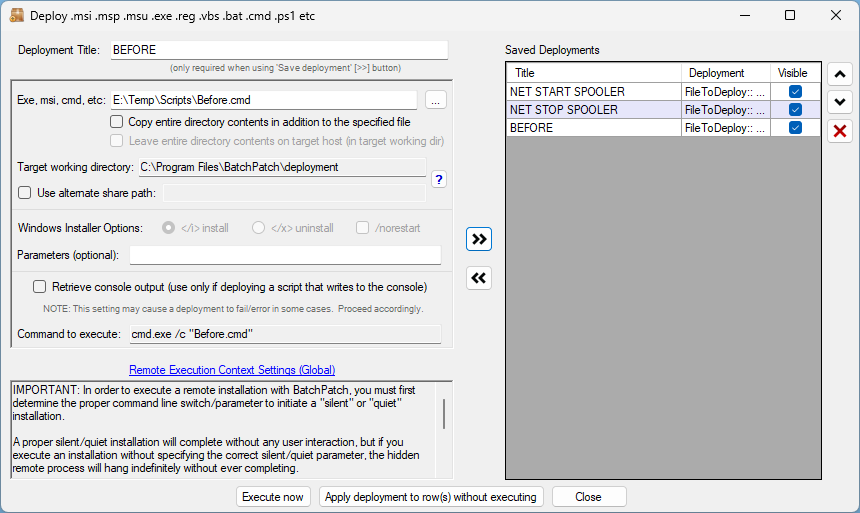
E:\Temp\Scripts\Before.cmd
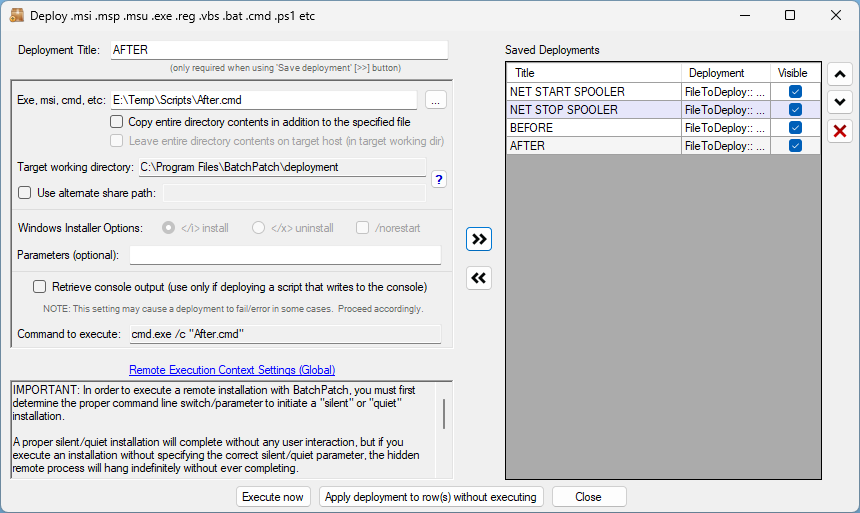
E:\Temp\Scripts\After.cmd
I’ve put my software installer file into:
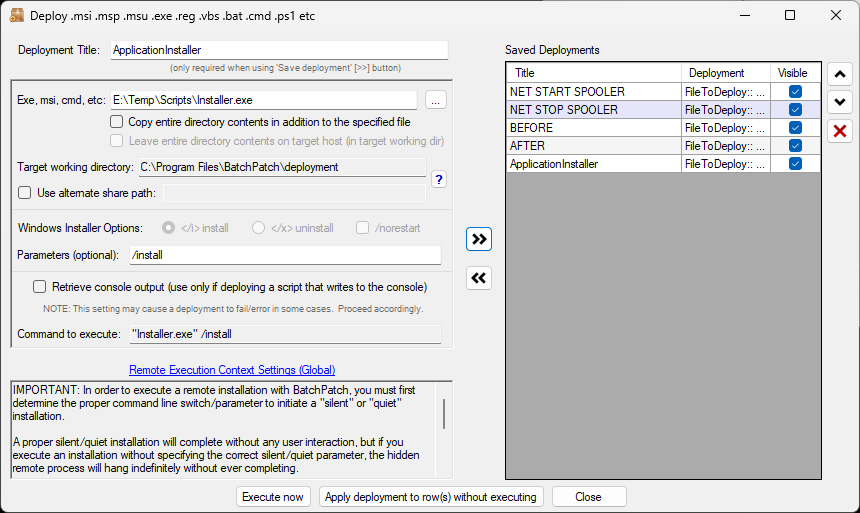
E:\Temp\Scripts\Installer.exe
First we have to create a deployment for each script and for the software installer. I’m using Actions > Deploy > Create for each of these. Below you can see a screenshot of each deployment configuration. After creating each deployment, I gave it a title and then used the double-right-arrow button to save it, which added it to the list of Saved Deployments on the right side of the deployment configuration window.
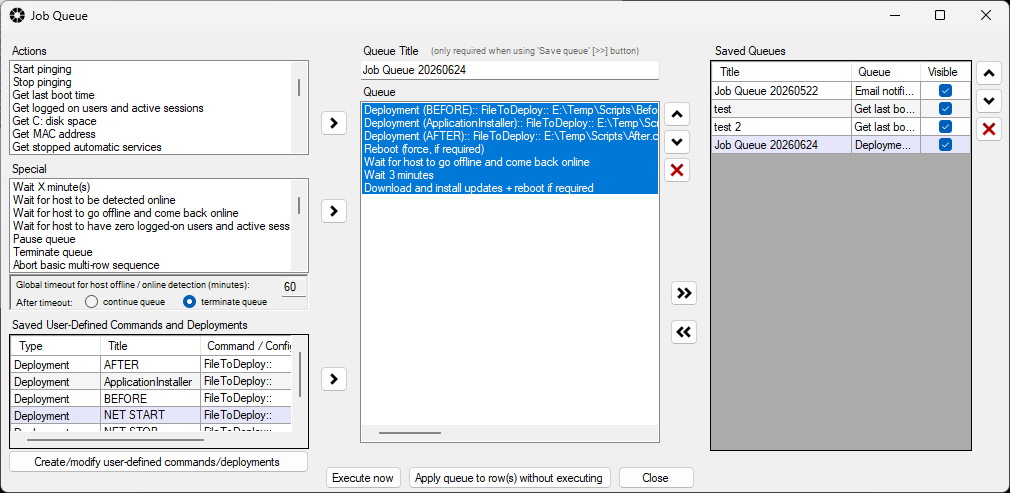
Next we’ll create the Job Queue. I use Actions > Job Queue > Create. The screenshot below shows my Job Queue configuration. I found the three deployments that I created in the lower-left Saved User-Defined Command and Deployments list. I just double-clicked on each one to load it into the Job Queue. The other actions I selected were found in the Special and Actions lists on the left side of the job queue form.
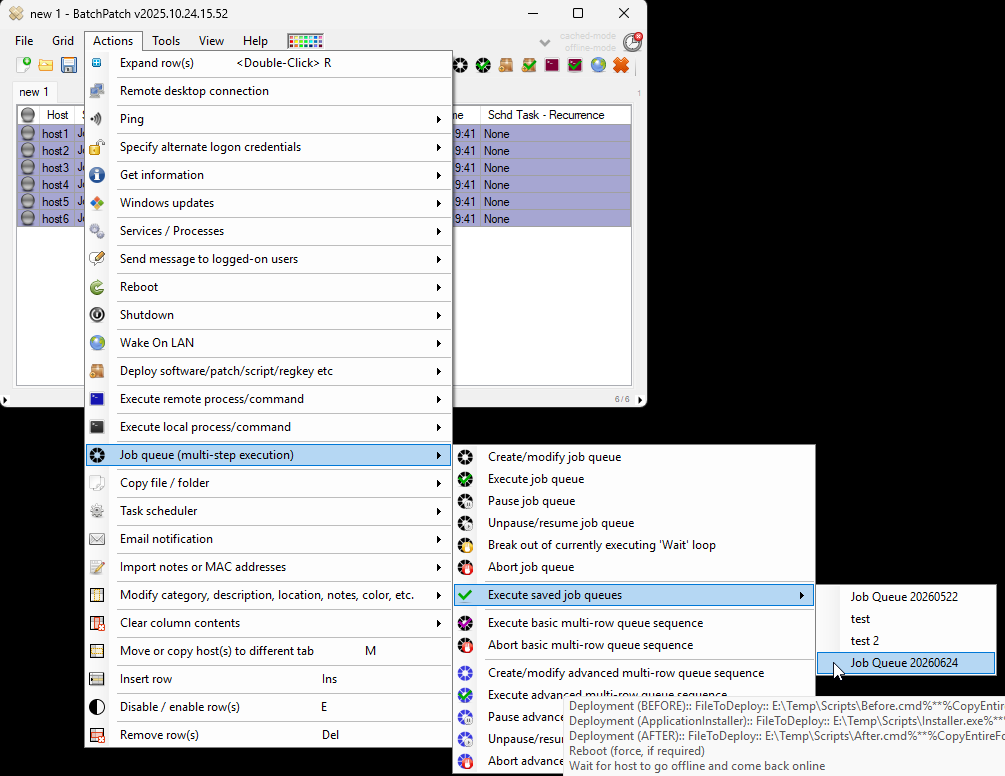
The last thing to do is actually execute the job queue. We select the desired hosts in the grid, and then we use Actions > Job Queue > Execute saved job queues to select the job queue that we just created/saved.
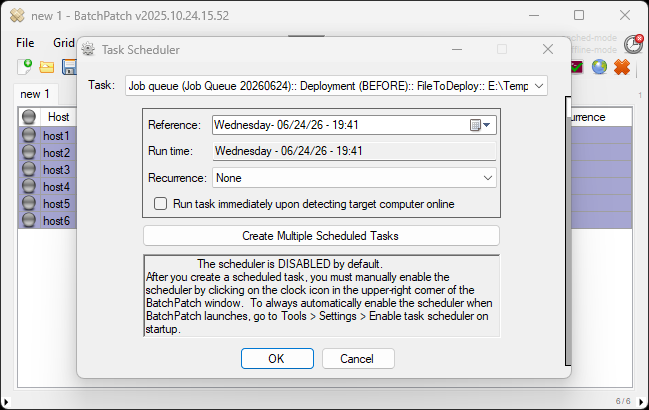
Alternatively, if we wanted to schedule this job queue to execute on a particular day or time, we would select the desired target hosts in the grid and click on Actions > Task Scheduler > Create/modify. Then in the Task Scheduler window, we’d select our Job Queue from the drop-down list of tasks. Then set our date/time and click OK, and finally click the timer/clock icon in the upper-right corner of the BatchPatch main form to turn it from red to green, indicating that the scheduler is enabled.